
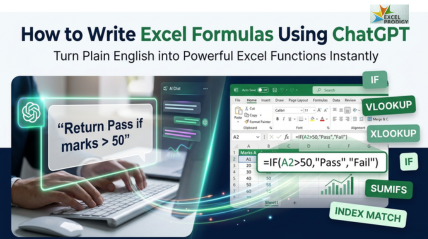
How to Write Excel Formulas Using ChatGPT (With Real Examples)
Introduction: Turn Plain English into Excel Formulas
What if you could turn plain English into Excel formulas instantly?
ChatGPT can write Excel formulas by converting plain English instructions into functions like IF, VLOOKUP, and SUMIFS. By describing your data, conditions, and expected output, you can generate accurate formulas instantly without memorizing syntax.
If you’ve ever struggled with syntax, debugging, or remembering complex Excel functions, learning how to write excel formulas using chatgpt can completely transform the way you work.
This guide will walk you through practical prompts, real examples, and proven techniques to help you write formulas faster, reduce errors, and boost productivity using AI.
What Does ChatGPT Do for Excel Formulas?
How ChatGPT Acts as an AI Excel Formula Generator
ChatGPT works like an intelligent AI Excel formula generator, simplifying the way users interact with spreadsheets. Instead of manually writing and troubleshooting complex formulas, you can simply explain your requirement in plain English, and ChatGPT converts that logic into an accurate Excel formula.
For example:
- You describe a condition – ChatGPT builds an IF formula
- You need data lookup – it generates VLOOKUP with ChatGPT or INDEX MATCH
- You want conditional totals – it produces SUMIFS
By translating everyday language into structured Excel logic, ChatGPT removes the need to memorize formulas and significantly lowers the learning curve, making Excel more accessible, faster, and far less intimidating for users at any level.
Types of Excel Formulas ChatGPT Can Generate
ChatGPT Excel formulas cover a wide range of use cases:
- Basic formulas: SUM, COUNT, AVERAGE
- Logical formulas: IF, nested IF formulas
- Lookup formulas: VLOOKUP with ChatGPT, XLOOKUP, INDEX MATCH
- Conditional formulas: SUMIF, SUMIFS
- Advanced formulas: Array formulas, FILTER, dynamic functions
Benefits of Using ChatGPT for Spreadsheets
Using ChatGPT for spreadsheets offers several advantages:
- Helps you write formulas faster without memorizing syntax
- Reduces human error in complex formulas
- Improves Excel automation by simplifying repetitive tasks
- Acts as a learning tool for beginners and professionals
- Supports quick formula troubleshooting
ChatGPT effectively bridges the gap between your intended logic and actual execution in Excel. Rather than spending time trying to recall or troubleshoot complex formula syntax, you can concentrate on clearly defining what you want to accomplish. This approach allowing you to focus more on analysis and decision-making while the AI handles the technical details.
How to Ask ChatGPT for Excel Formulas (Prompt Formula)
To truly master how to write excel formulas using chatgpt, you must learn how to write effective prompts.
The Perfect Prompt Structure
Use this simple formula:
“Write an Excel formula for [goal]. Data is in [range]. Output should [result]. Conditions: [logic]. Excel version: [optional].”
Key Elements of a Good Prompt
- Data Range – Specify cells clearly (e.g., A2:A100)
- Logic – Define conditions (greater than, match, etc.)
- Expected Output – What result you want
- Excel Version – Important for functions like XLOOKUP
Example Prompt
Problem: Assign Pass/Fail based on marks
Prompt:
“Write an Excel formula to return ‘Pass’ if marks in A2 are above 50, otherwise ‘Fail’.”
ChatGPT Response:
=IF(A2>50,”Pass”,”Fail”)
In Summary
The quality of your output depends entirely on your input. Clear prompts produce accurate ChatGPT Excel formulas.
10 Real Excel Formula Examples Generated by ChatGPT
Below are practical Excel formulas examples categorized by difficulty, using real prompts.
Beginner Examples
Example 1: SUM Formula
Problem: Add total sales
Prompt:
“Write an Excel formula to sum values from A1 to A10.”
ChatGPT Response:
=SUM(A1:A10)
Final Formula:
=SUM(A1:A10)
Explanation: Adds all values in the range.
Example 2: AVERAGE Formula
Problem: Calculate average score
Prompt:
“Find the average of values in B1 to B10.”
Formula:
=AVERAGE(B1:B10)
Example 3: IF Formula
Problem: Pass/Fail logic
Prompt:
“Return Pass if A2 > 50, else Fail.”
Formula:
=IF(A2>50,”Pass”,”Fail”)
Intermediate Examples
Example 4: VLOOKUP with ChatGPT
Problem: Retrieve employee salary
Prompt:
“Lookup employee ID in A2 and return salary from column 3 in A2:C10.”
Formula:
=VLOOKUP(A2,A2:C10,3,FALSE)
Example 5: XLOOKUP Formula
Prompt:
“Use XLOOKUP to find value in B column based on A2.”
Formula:
=XLOOKUP(A2,A2:A10,B2:B10)
Example 6: SUMIFS Formula
Problem: Conditional sum
Prompt:
“Sum values in C2:C10 where B2:B10 is ‘South’.”
Formula:
=SUMIFS(C2:C10,B2:B10,”South”)
Advanced Examples
Example 7: Nested IF Formulas
Problem: Grade classification
Prompt:
“Create grading formula: A ≥ 90, B ≥ 75, C ≥ 50, else Fail.”
Formula:
=IF(A2>=90,”A”,IF(A2>=75,”B”,IF(A2>=50,”C”,”Fail”)))
Example 8: INDEX MATCH
Problem: Flexible lookup
Prompt:
“Return value from B2:B10 matching A2 in A column.”
Formula:
=INDEX(B2:B10,MATCH(A2,A2:A10,0))
Example 9: Array Formula
Problem: Multiply and sum
Formula:
=SUM(A1:A10*B1:B10)
Example 10: Dynamic FILTER Formula
Prompt:
“Filter rows where B column equals Yes.”
Formula:
=FILTER(A2:B10,B2:B10=”Yes”)
In Summary
These Excel formula examples demonstrate how ChatGPT can efficiently manage a wide range of tasks, from basic arithmetic calculations to advanced, multi-layered logical operations with ease and accuracy.
Common ChatGPT Excel Mistakes and How to Fix Them
While ChatGPT is a powerful tool for generating Excel formulas, it is not immune to errors, especially when the input lacks clarity.
- Vague Prompts
If your instructions are unclear or incomplete, the output may not match your needs.
Fix: Always specify exact ranges, conditions, and expected results to guide the AI effectively.
- Formula Errors (#N/A, #VALUE!)
These errors often occur due to incorrect references, mismatched data types, or missing values.
Fix: Double-check your cell references, ensure consistent data formats, and validate the input data.
- Version Compatibility Issues
Some formulas generated (like XLOOKUP) may not work in older Excel versions.
Fix: Request alternative formulas such as VLOOKUP or INDEX MATCH if you’re using earlier versions.
- Overuse of Nested IF Formulas
Complex nested IF formulas can become difficult to read and maintain.
Fix: Ask ChatGPT for simpler approaches, such as using SWITCH functions or breaking logic into helper columns.
In Summary
Most errors are not due to limitations of ChatGPT, but rather unclear or incomplete instructions. Providing detailed prompts significantly improves accuracy and reliability.
How to Verify AI-Generated Excel Formulas
It is important not to rely on AI-generated outputs without proper validation. Even though ChatGPT is highly capable, verifying the results ensures accuracy and reliability.
Step-by-Step Verification:
- Test the formula using sample or dummy data to check correctness
- Break complex formulas into smaller parts to understand the logic clearly
- Use Excel’s built-in Formula Auditing tools to trace errors and dependencies
- Compare the expected results with the actual output to confirm accuracy
In summary, validating formulas not only prevents errors but also builds trust and confidence in using ChatGPT Excel formulas for real-world tasks.
Best Prompts for Excel Formula Writing (Copy & Paste)
Here are some reusable Excel prompt examples that can help you maintain consistency and accuracy when working with ChatGPT. By using structured prompts, you can get more precise and reliable formulas every time.
Basic Prompt
“Write an Excel formula to sum values in A1:A10.”
Intermediate Prompt
“Create a SUMIFS formula to sum C2:C10 where B2:B10 = ‘East’.”
Advanced Prompt
“Generate nested IF formulas for grading logic with multiple conditions.”
Professional Use Case Prompt
“Create an INDEX MATCH formula to retrieve sales data based on product ID.”
In Summary
Using well-structured Excel prompt examples not only improves the quality of results but also helps you write formulas faster, reduce errors, and build a more efficient workflow over time.
Real-World Use Cases of ChatGPT for Excel
Students
- Simplify marks calculation with accurate formulas and grading logic
- Track assignments, deadlines, and performance in an organized manner
Professionals
- Create detailed reports and interactive dashboards for better decision-making
- Handle data cleaning, formatting, and automation tasks efficiently
Accountants
- Build reliable financial models for analysis and forecasting
- Perform tax calculations and manage financial records with precision
Business Owners
- Monitor sales performance and trends to make informed decisions
- Manage inventory levels effectively to avoid shortages or overstocking
In Summary
From beginners to experts, ChatGPT for spreadsheets enables smarter, faster work.
Excel Prodigy’s Approach to Advanced Training
At Excel Prodigy, we believe Excel is more than just a tool, it is a powerful solution for real-world business challenges. Our Advanced Excel training is designed to help you work smarter, faster, and more efficiently with data.
We focus on practical, hands-on learning, ensuring every concept, from IF and nested IF formulas to VLOOKUP and INDEX MATCH that can be applied immediately in real scenarios. Our sessions are led by industry experts who combine technical knowledge with business insights.
Through our structured curriculum, you will learn:
- Advanced formulas and data analysis techniques
- Reporting and dashboard creation
- Workflow automation for better productivity
Our approach emphasizes learning by doing, with real-time exercises and use cases. The goal is simple: to help you save time, reduce manual effort, and make confident, data-driven decisions using Excel.
Conclusion: Write Excel Formulas Faster with ChatGPT
Mastering how to write excel formulas using chatgpt is no longer optional—it’s a competitive advantage. Whether you’re handling reports, automating tasks, or analyzing data, combining Excel with AI allows you to write formulas faster, improve accuracy, and unlock true productivity.
However, the real power lies in combining AI with strong Excel fundamentals.
If you want to move beyond basic formulas and truly master Excel automation, consider learning from experts at Excel Prodigy.
FAQs: ChatGPT Excel Formulas
1) Can ChatGPT write Excel formulas?
Yes, ChatGPT can generate formulas like IF, SUMIFS, and VLOOKUP when provided with clear instructions and logic.
2) How do I ask ChatGPT for an Excel formula?
Describe your dataset, conditions, and output clearly. Example: “Return Pass if A2 > 50.”
3) Are ChatGPT Excel formulas always accurate?
The ChatGPT Excel formulas are usually correct but should always be tested before use in real scenarios.
4) Can ChatGPT fix formula errors?
Yes, ChatGPT can assist in formula troubleshooting and suggest corrections.
5) Is ChatGPT better than learning Excel manually?
ChatGPT complements learning but does not replace fundamental Excel knowledge.