
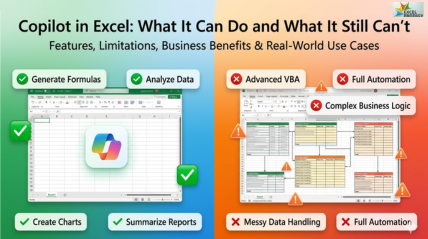
Copilot in Excel: What It Can Do and What It Still Can’t
Businesses today are increasingly adopting AI-powered productivity tools to improve reporting, analysis, and decision-making. One of the most talked-about tools is copilot in excel, Microsoft’s built-in AI assistant designed to simplify spreadsheet work. From generating formulas and analyzing datasets to creating summaries and charts, Excel Copilot can significantly reduce manual effort.
However, it still has limitations when handling complex business logic, messy datasets, advanced automation, and workbook-wide reasoning. Understanding both the strengths and weaknesses of Microsoft Copilot for Excel helps professionals make smarter decisions about whether it fits their workflow.
What Is a Copilot in Excel?
Microsoft Copilot Excel is an AI-powered assistant integrated into Microsoft Excel through the Microsoft 365 ecosystem. It combines natural language processing with spreadsheet intelligence to help users interact with Excel using conversational prompts instead of traditional manual operations.
Rather than writing formulas manually or spending hours analyzing spreadsheets, users can ask questions like:
“Summarize monthly sales performance.”
“Create a chart comparing regional growth.”
“Generate an IF formula for sales classification.”
The Excel AI assistant then interprets the request and performs the task directly within the workbook.
Unlike standalone AI tools, copilot in excel works inside the Excel interface itself. This gives it better access to workbook context, structured tables, charts, and spreadsheet elements compared with external tools.
How Microsoft Copilot Excel Works Inside Microsoft 365
Microsoft 365 Copilot integrates AI capabilities across applications like Excel, Word, Teams, Outlook, and PowerPoint. In Excel, Copilot can:
- Analyze structured tables
- Generate formulas
- Create summaries
- Build visualizations
- Detect patterns
- Explain spreadsheet logic
The AI works through simple text prompts, enabling users to manage spreadsheets, analyze data, and generate formulas using everyday language without depending entirely on advanced Excel technical skills.
What You Need to Access in Excel Copilot
Many users assume Copilot is available automatically in Excel, but access depends on licensing requirements.
To use Microsoft Copilot Excel, users generally need:
- A compatible Microsoft 365 subscription
- Copilot-enabled licensing
- Updated Excel desktop or web application
- Supported regions and enterprise availability
This licensing confusion is one reason many users struggle to understand how to access copilot for spreadsheets.
Why Businesses Are Adopting Copilot for Spreadsheets
Organizations are increasingly exploring Excel automation AI because spreadsheet-heavy workflows consume substantial time.
Businesses use Excel AI tool for:
- Financial reporting
- Budget analysis
- Sales forecasting
- HR reporting
- Operational dashboards
- Inventory tracking
The main appeal is faster analysis and reduced repetitive work.
What Copilot in Excel Can Do
The biggest strength of Excel Copilot features lies in simplifying everyday spreadsheet tasks. While it is not a complete replacement for advanced Excel expertise, it can significantly improve productivity for many business users.
i) Generate Excel Formulas from Natural Language
One of the most impressive Excel Copilot features is formula generation.
Instead of manually writing formulas, users can describe what they need in plain English.
Example Prompt
“Create a formula to classify sales above ₹1,00,000 as High and below as Low.”
Output
Copilot may generate:
=IF(B2>100000,”High”,”Low”)
It can also generate:
- XLOOKUP formulas
- SUMIFS
- COUNTIFS
- Conditional logic
- Dynamic array formulas
- Date calculations
Key Takeaway
For beginners and intermediate users, copilot for spreadsheets dramatically reduces the learning curve associated with formula writing.
Limitation
Complex nested logic or industry-specific formulas may still require manual refinement.
ii) Analyze Large Datasets Faster
Another major advantage of Microsoft Copilot Excel is dataset analysis.Users can ask questions like:
“Identify the top-performing regions by quarterly revenue growth.”
What Copilot Can Do
- Detect trends
- Compare performance
- Calculate summaries
- Highlight top and bottom performers
- Generate analytical insights
Business Scenario
A finance team reviewing monthly reports can quickly identify revenue dips or growth opportunities without manually building multiple PivotTables.
Bottom Line
For structured business data, the AI assistant in Excel can save hours of repetitive analytical work.
iii) Create Charts, Summaries, and Reports Automatically
Visualization is another area where Excel AI assistant capabilities are highly useful.
Example Prompt
“Create a bar chart comparing sales by region.”
Result
Copilot can:
- Suggest chart types
- Build visualizations
- Generate executive summaries
- Create trend-based reporting
This is especially valuable for:
- Managers
- Business analysts
- MIS teams
- Operations professionals
Capability
Users can quickly transform raw spreadsheets into presentation-ready reports.
Limitation
Chart customization may still require manual editing for professional dashboard standards.
iv) Highlight Trends, Patterns, and Anomalies
Modern businesses rely heavily on fast data interpretation. One of the useful Excel Copilot features is identifying unusual patterns in data.
Example Prompt
“Find unusual drops in monthly sales.”
Result
The AI may detect:
- Sudden declines
- Seasonal spikes
- Outliers
- Performance anomalies
This can support:
- Financial auditing
- Inventory planning
- Operational monitoring
- Sales forecasting
Key Takeaway
Copilot for spreadsheets works best when datasets are clean, structured, and consistently formatted.
v) Suggest Tables, Formatting, and Data Organization
Formatting spreadsheets manually can be time-consuming. The Excel AI assistant can assist by:
- Suggesting table structures
- Recommending formatting
- Organizing datasets
- Improving readability
Example Prompt
“Format this dataset into a professional sales report.”
Output
Copilot may:
- Convert ranges into tables
- Apply conditional formatting
- Improve column organization
- Suggest filters
Limitation
Messy spreadsheets with inconsistent formatting may confuse the AI.
vi) Explain Complex Excel Formulas in Simple Language
Many users inherit spreadsheets containing advanced formulas they do not understand.
One underrated capability of Microsoft Copilot Excel is formula explanation.
Example Prompt
“Explain this formula.”
Result
Copilot can break down formulas into simpler language, helping users understand:
- Lookup functions
- Nested IF statements
- Array formulas
- Logical operations
Bottom Line
This makes copilot in excel highly useful for training and learning environments.
vii) Help Beginners Learn Excel Faster
For beginners, the learning curve of Excel can feel overwhelming. The conversational nature of Excel automation AI tools reduces technical barriers.
Instead of memorizing formulas, users can:
- Ask questions naturally
- Learn through AI suggestions
- Understand spreadsheet logic faster
This is one reason many training providers now integrate AI-assisted Excel learning into their curriculum.
What Copilot in Excel Still Can’t Do
Despite impressive capabilities, understanding Copilot Excel limitations is critical before adopting the tool.
This is where many expectations mismatch with reality.
i) It Cannot Replace Advanced Excel Experts
One of the biggest misconceptions about copilot in excel is that it can fully replace analysts or advanced Excel professionals.
In reality:
- Business logic still requires human thinking
- AI outputs require validation
- Decision-making still depends on expertise