
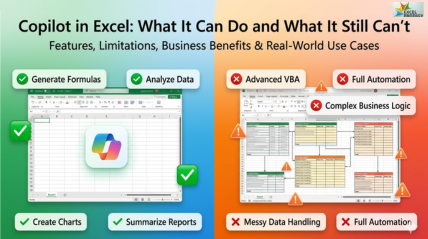
Copilot in Excel: What It Can Do and What It Still Can’t
Businesses today are increasingly adopting AI-powered productivity tools to improve reporting, analysis, and decision-making. One of the most talked-about tools is copilot in excel, Microsoft’s built-in AI assistant designed to simplify spreadsheet work. From generating formulas and analyzing datasets to creating summaries and charts, Excel Copilot can significantly reduce manual effort.
However, it still has limitations when handling complex business logic, messy datasets, advanced automation, and workbook-wide reasoning. Understanding both the strengths and weaknesses of Microsoft Copilot for Excel helps professionals make smarter decisions about whether it fits their workflow.
What Is a Copilot in Excel?
Microsoft Copilot Excel is an AI-powered assistant integrated into Microsoft Excel through the Microsoft 365 ecosystem. It combines natural language processing with spreadsheet intelligence to help users interact with Excel using conversational prompts instead of traditional manual operations.
Rather than writing formulas manually or spending hours analyzing spreadsheets, users can ask questions like:
“Summarize monthly sales performance.”
“Create a chart comparing regional growth.”
“Generate an IF formula for sales classification.”
The Excel AI assistant then interprets the request and performs the task directly within the workbook.
Unlike standalone AI tools, copilot in excel works inside the Excel interface itself. This gives it better access to workbook context, structured tables, charts, and spreadsheet elements compared with external tools.
How Microsoft Copilot Excel Works Inside Microsoft 365
Microsoft 365 Copilot integrates AI capabilities across applications like Excel, Word, Teams, Outlook, and PowerPoint. In Excel, Copilot can:
- Analyze structured tables
- Generate formulas
- Create summaries
- Build visualizations
- Detect patterns
- Explain spreadsheet logic
The AI works through simple text prompts, enabling users to manage spreadsheets, analyze data, and generate formulas using everyday language without depending entirely on advanced Excel technical skills.
What You Need to Access in Excel Copilot
Many users assume Copilot is available automatically in Excel, but access depends on licensing requirements.
To use Microsoft Copilot Excel, users generally need:
- A compatible Microsoft 365 subscription
- Copilot-enabled licensing
- Updated Excel desktop or web application
- Supported regions and enterprise availability
This licensing confusion is one reason many users struggle to understand how to access copilot for spreadsheets.
Why Businesses Are Adopting Copilot for Spreadsheets
Organizations are increasingly exploring Excel automation AI because spreadsheet-heavy workflows consume substantial time.
Businesses use Excel AI tool for:
- Financial reporting
- Budget analysis
- Sales forecasting
- HR reporting
- Operational dashboards
- Inventory tracking
The main appeal is faster analysis and reduced repetitive work.
What Copilot in Excel Can Do
The biggest strength of Excel Copilot features lies in simplifying everyday spreadsheet tasks. While it is not a complete replacement for advanced Excel expertise, it can significantly improve productivity for many business users.
i) Generate Excel Formulas from Natural Language
One of the most impressive Excel Copilot features is formula generation.
Instead of manually writing formulas, users can describe what they need in plain English.
Example Prompt
“Create a formula to classify sales above ₹1,00,000 as High and below as Low.”
Output
Copilot may generate:
=IF(B2>100000,”High”,”Low”)
It can also generate:
- XLOOKUP formulas
- SUMIFS
- COUNTIFS
- Conditional logic
- Dynamic array formulas
- Date calculations
Key Takeaway
For beginners and intermediate users, copilot for spreadsheets dramatically reduces the learning curve associated with formula writing.
Limitation
Complex nested logic or industry-specific formulas may still require manual refinement.
ii) Analyze Large Datasets Faster
Another major advantage of Microsoft Copilot Excel is dataset analysis.Users can ask questions like:
“Identify the top-performing regions by quarterly revenue growth.”
What Copilot Can Do
- Detect trends
- Compare performance
- Calculate summaries
- Highlight top and bottom performers
- Generate analytical insights
Business Scenario
A finance team reviewing monthly reports can quickly identify revenue dips or growth opportunities without manually building multiple PivotTables.
Bottom Line
For structured business data, the AI assistant in Excel can save hours of repetitive analytical work.
iii) Create Charts, Summaries, and Reports Automatically
Visualization is another area where Excel AI assistant capabilities are highly useful.
Example Prompt
“Create a bar chart comparing sales by region.”
Result
Copilot can:
- Suggest chart types
- Build visualizations
- Generate executive summaries
- Create trend-based reporting
This is especially valuable for:
- Managers
- Business analysts
- MIS teams
- Operations professionals
Capability
Users can quickly transform raw spreadsheets into presentation-ready reports.
Limitation
Chart customization may still require manual editing for professional dashboard standards.
iv) Highlight Trends, Patterns, and Anomalies
Modern businesses rely heavily on fast data interpretation. One of the useful Excel Copilot features is identifying unusual patterns in data.
Example Prompt
“Find unusual drops in monthly sales.”
Result
The AI may detect:
- Sudden declines
- Seasonal spikes
- Outliers
- Performance anomalies
This can support:
- Financial auditing
- Inventory planning
- Operational monitoring
- Sales forecasting
Key Takeaway
Copilot for spreadsheets works best when datasets are clean, structured, and consistently formatted.
v) Suggest Tables, Formatting, and Data Organization
Formatting spreadsheets manually can be time-consuming. The Excel AI assistant can assist by:
- Suggesting table structures
- Recommending formatting
- Organizing datasets
- Improving readability
Example Prompt
“Format this dataset into a professional sales report.”
Output
Copilot may:
- Convert ranges into tables
- Apply conditional formatting
- Improve column organization
- Suggest filters
Limitation
Messy spreadsheets with inconsistent formatting may confuse the AI.
vi) Explain Complex Excel Formulas in Simple Language
Many users inherit spreadsheets containing advanced formulas they do not understand.
One underrated capability of Microsoft Copilot Excel is formula explanation.
Example Prompt
“Explain this formula.”
Result
Copilot can break down formulas into simpler language, helping users understand:
- Lookup functions
- Nested IF statements
- Array formulas
- Logical operations
Bottom Line
This makes copilot in excel highly useful for training and learning environments.
vii) Help Beginners Learn Excel Faster
For beginners, the learning curve of Excel can feel overwhelming. The conversational nature of Excel automation AI tools reduces technical barriers.
Instead of memorizing formulas, users can:
- Ask questions naturally
- Learn through AI suggestions
- Understand spreadsheet logic faster
This is one reason many training providers now integrate AI-assisted Excel learning into their curriculum.
What Copilot in Excel Still Can’t Do
Despite impressive capabilities, understanding Copilot Excel limitations is critical before adopting the tool.
This is where many expectations mismatch with reality.
i) It Cannot Replace Advanced Excel Experts
One of the biggest misconceptions about copilot in excel is that it can fully replace analysts or advanced Excel professionals.
In reality:
- Business logic still requires human thinking
- AI outputs require validation
- Decision-making still depends on expertise
Key Takeaway
Copilot accelerates spreadsheet work but does not eliminate the need for experienced professionals.
ii) Copilot Struggles with Messy or Unstructured Data
AI performs best with clean and organized datasets.
Problem Areas
- Merged cells
- Inconsistent headers
- Missing values
- Poor formatting
- Multiple disconnected tables
Example
If a workbook contains inconsistent structures across sheets, the Excel AI assistant may misunderstand relationships.
Bottom Line
Clean data remains essential for reliable AI analysis.
iii) Workbook-Wide Context Awareness Is Still Limited
Although Microsoft Copilot Excel understands workbook content better than many external AI tools, it still has contextual limitations.
Challenges
- Cross-sheet dependencies
- Complex linked workbooks
- Multi-file reasoning
- Enterprise-level spreadsheet architecture
Key Insight
Users should not expect complete human-like understanding across highly complex spreadsheet ecosystems.
iv) Advanced VBA, Macros, and Power Query Support Is Limited
This is one of the most important Copilot Excel limitations for advanced users.
While Copilot can assist with simple automation ideas, it still struggles with:
- Advanced VBA scripting
- Custom macros
- Complex Power Query workflows
- Power Pivot modeling
Reality Check
Heavy automation users may still rely on manual development and advanced Excel expertise.
v) Complex Business Logic Still Requires Human Validation
AI-generated formulas or recommendations are not always correct.
Risks
- Incorrect assumptions
- Formula errors
- Misinterpreted context
- Faulty business calculations
This is especially important in:
- Finance
- Compliance
- Auditing
- Forecasting
Key Takeaway
Human review remains mandatory.
vi) Full Excel Automation Still Isn’t Possible with AI Alone
Despite rapid AI progress, Excel automation AI is not yet fully autonomous.
Copilot cannot independently:
- Run entire business workflows
- Replace ERP systems
- Handle advanced process automation
- Manage enterprise-level logic reliably
Bottom Line
AI improves Excel productivity but does not replace structured business systems or skilled professionals.
Copilot in Excel vs ChatGPT for Excel
The debate around Copilot vs ChatGPT for Excel continues growing as businesses explore AI productivity tools. Both tools are useful, but they serve different purposes.
| Feature | Excel Copilot | ChatGPT |
| Built inside Excel | Yes | No |
| Formula generation | Strong | Strong |
| Dataset analysis | Better workbook context | Depends on prompts |
| File understanding | Better | Limited |
| Learning explanations | Moderate | Strong |
| Flexibility | Moderate | Very High |
| VBA guidance | Limited | Better |
| Workflow integration | Native Microsoft 365 | External |
Formula Generation Comparison
Both tools can generate formulas effectively.
However:
- Microsoft Copilot Excel works directly inside workbooks
- ChatGPT often provides more detailed explanations
Dataset Analysis and File Understanding
Because copilot in excel works within the spreadsheet environment, it generally has better contextual awareness for tables and workbook structures.
Which AI Tool Is Better for Excel Users?
Best Choice for:
- Workflow acceleration → Excel Copilot
- Learning and troubleshooting → ChatGPT
- Enterprise integration → Microsoft 365 Copilot
- Advanced guidance → ChatGPT
Key Takeaway
The ideal approach is often combining both tools strategically.
Who Should Use Copilot in Excel?
Not every user benefits equally from AI spreadsheet tools.
i) Best for Finance Teams and Business Analysts
Finance professionals handling repetitive reports can benefit greatly from copilot in excel. Key advantages include:
- Faster reporting
- Quicker summaries
- Automated insights
- Improved efficiency
ii) Helpful for Beginners and Microsoft 365 Users
New Excel users often struggle with formulas and data analysis. The conversational approach of copilot for spreadsheets helps reduce technical barriers.
iii) Useful for Reporting and Operations Teams
Operations teams working with repetitive reports can save substantial time using:
- Automated summaries
- Trend analysis
- Visual reporting
iv) Who May Not Benefit Much from Excel Copilot
Some advanced users may find limitations frustrating. This includes:
- VBA developers
- Power Query specialists
- Dashboard architects
- Enterprise automation experts
For highly advanced workflows, traditional Excel expertise still matters significantly.
When Microsoft 365 Copilot Delivers Real ROI
Microsoft 365 Copilot becomes highly valuable when organizations:
- Already use Microsoft tools extensively
- Manage repetitive reporting workflows
- Need productivity improvements
- Want faster data analysis
Key Benefit
Time savings across recurring spreadsheet tasks can justify the investment.
Situations Where Copilot May Not Be Necessary
Some users may not need paid AI integration. For example:
- Users needing only occasional formula help
- Advanced Excel experts
- Small teams with simple spreadsheets
In these cases, ChatGPT or traditional Excel skills may already be sufficient
.
How to Decide if Copilot in Excel Is Right for You
| User Type | Worth It? | Reason |
| Beginners | Yes | Faster learning |
| Finance teams | Yes | Productivity gains |
| Reporting managers | Yes | Better summaries |
| VBA developers | Limited | Automation constraints |
| Advanced dashboard creators | Moderate | Manual customization still needed |
Final Verdict
Copilot in excel is highly useful for productivity acceleration but should be viewed as an assistant rather than a replacement for expertise.
Best Practices to Get Better Results from Copilot in Excel
To maximize the value of Excel Copilot features, users should follow structured practices.
i) Use Structured Tables and Clean Data
AI performs best with:
- Proper headers
- Consistent formatting
- Organized datasets
- Structured tables
ii) Write Better Prompts for More Accurate Results
Specific prompts generate better outputs.
Weak Prompt
“Analyze this.”
Better Prompt
“Identify the top three products by quarterly revenue growth.”
iii) Always Review AI-Generated Outputs
AI-generated insights should always be validated before:
- Reporting
- Decision-making
- Financial submissions
- Executive presentations
iv) Combine Excel Skills with AI Productivity Tools
The most successful professionals combine:
- Traditional Excel expertise
- Analytical thinking
- AI-assisted productivity
This creates stronger long-term value than relying entirely on automation.
How Excel Prodigy Helps Professionals Master Excel AI Tools
As businesses continue adopting Microsoft Copilot Excel and AI-assisted workflows, we believe strong spreadsheet fundamentals are still essential for using these tools effectively. At Excel Prodigy, we offer practical, industry-focused Excel training programs that help professionals master both traditional Excel techniques and modern AI-powered productivity workflows.
Through our training programs, you can learn:
- Advanced Excel skills
- Data analysis techniques
- AI-assisted reporting methods
- Real-world business applications
- Productivity-focused spreadsheet workflows
For organizations implementing Excel automation AI, long-term success depends on balancing AI-driven productivity with strong human expertise. Combining analytical thinking, practical Excel knowledge, and intelligent automation helps businesses achieve more accurate reporting, better decision-making, and sustainable operational efficiency.
Case Studies
Case Study 1: Faster Financial Reporting with AI-Assisted Excel Workflows
A mid-sized finance company struggled with lengthy monthly reporting cycles involving large Excel datasets, repetitive formula creation, and manual chart preparation. Preparing management reports often required several hours of manual spreadsheet work each week, increasing the risk of reporting delays and formula errors.
After upskilling through Excel Prodigy, the finance team learned how to combine advanced Excel techniques with AI-assisted tools like Microsoft Copilot. By using structured datasets, automated formulas, and AI-generated summaries, the company streamlined its reporting workflow and improved overall reporting accuracy.
Result
- Reduced monthly reporting preparation time
- Improved financial data analysis efficiency
- Minimized manual spreadsheet errors
- Faster management-level decision visibility
Case Study 2: Improving Sales Analysis and Dashboard Reporting
A retail operations team managing regional sales reports faced challenges consolidating spreadsheets from multiple locations, identifying sales trends, and preparing dashboards quickly for leadership reviews. Heavy dependence on manual Excel operations slowed reporting cycles and reduced analytical efficiency.
Through practical Excel and AI workflow training from Excel Prodigy, the team adopted smarter spreadsheet practices using Excel automation AI tools, structured reporting systems, and advanced visualization techniques. This helped the organization improve reporting consistency and improve sales analysis workflows.
Result
- Faster regional sales trend analysis
- Improved dashboard reporting efficiency
- Better visibility into sales performance
- Increased productivity across reporting teams
End Thoughts
The rise of Microsoft Copilot for Excel represents a major shift in how professionals interact with spreadsheets. From generating formulas and analyzing data to building summaries and identifying trends, AI is making Excel faster and more accessible for everyday business tasks.
At Excel Prodigy, we believe the most effective approach is not choosing between AI tools and Excel expertise, but integrating both together. Professionals who combine strong spreadsheet fundamentals with strategic AI usage will be better prepared to improve productivity, make smarter decisions, and stay competitive in the evolving digital workplace.
Upgrade your Excel skills with AI-powered learning at Excel Prodigy and stay ahead in the modern workplace.
Frequently Asked Questions
1) Is Copilot Available in Excel?
Yes, copilot in excel is available for eligible Microsoft 365 users with supported Copilot licensing.
2) Can Copilot Write Excel Formulas Automatically?
Yes, it can generate formulas using plain-English prompts, including logical, lookup, aggregation, and conditional formulas.
3) Does Copilot Work with PivotTables and Charts?
Yes, Microsoft Copilot Excel can help analyze tables, suggest visualizations, and generate charts for structured datasets.
4) Can Excel Copilot Replace Data Analysts?
No. While it improves productivity, human expertise, business understanding, and validation remain essential.
5) Why choose Excel Prodigy for Excel and AI training?
We offer practical, industry-focused training that helps professionals master advanced Excel skills, data analysis, and modern AI-powered productivity tools for real-world business applications.


