
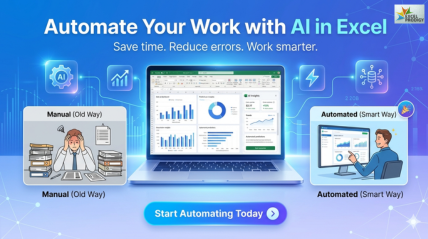
How to Use AI Features in Excel to Automate Your Daily Tasks
If you are like most professionals, you probably use Excel every day, yet only use a little bit of what it can truly do. A significant amount of time is spent on tasks like cleaning unstructured data, correcting formulas, and manually creating reports, processes that are repetitive, time-intensive, and prone to errors.
This is where AI in Microsoft Excel transforms the way we work. Instead of doing everything manually, Excel now includes intelligent tools that can analyze, clean, and organize data automatically. By using these features, professionals can shift their focus from routine tasks to decision-making and strategy.
What Are AI Features in Excel?
AI in Microsoft Excel vs Traditional Excel
Traditional Excel primarily depends on manual effort, users need to write formulas, apply functions, and interpret data on their own. While this approach works, it often requires time, accuracy, and a solid understanding of Excel functions.
In contrast, AI Features in Excel bring a smarter, more intuitive approach to working with data. These features are designed to assist users by automatically recognizing patterns within datasets, recommending the most suitable formulas, and generating meaningful insights without requiring extensive manual input.
Instead of spending time figuring out which function to use or how to structure your data, Excel’s AI capabilities guide you through the process. This not only reduces effort but also significantly speeds up workflows, allowing you to achieve accurate results in a fraction of the time.
Built-In Smart Excel Features You Already Have
One of the biggest advantages is that many of these advanced capabilities are already built into Excel, no additional tools or technical setup required. However, a large number of users are unaware of the powerful Excel AI tools available at their fingertips.
Some of the most effective built-in features include:
- Analyze Data : Automatically scans your data to highlight trends, patterns, and summaries
- Flash Fill: Detects patterns and completes repetitive data formatting tasks instantly
- PivotTable Suggestions: Recommends the best way to summarize and present your data
- Power Query: Enables automated data cleaning, transformation, and consolidation
These smart Excel features are specifically designed to simplify complex tasks and eliminate repetitive manual work. The best part is that they are user-friendly and do not require any coding or advanced technical expertise, making them accessible to professionals across all domains.
Key AI Features in Excel to Automate Your Daily Tasks
Analyze Data Tool: Get Instant Insights Without Manual Work
One of the most powerful AI Features in Excel is the Analyze Data tool, which automatically examines your dataset and delivers ready-to-use insights, trends, and visual summaries. Instead of spending time building formulas or charts, Excel does the heavy lifting for you.
How to use it:
- Select your data range
- Navigate to the “Home” tab
- Click on “Analyze Data”
- Explore the automatically generated charts and summaries
Practical use: Ideal for quickly identifying sales patterns or performance trends without writing complex formulas, making it perfect for daily reporting tasks.
Flash Fill – Automate Repetitive Data Formatting
Flash Fill is a simple yet highly effective feature Excel for data analysis that recognizes patterns in your data and completes repetitive tasks automatically. This is especially useful for cleaning and restructuring data.
Example:
If you manually separate a full name into first and last names for one row, Flash Fill will apply the same logic to the entire column.
Steps:
- Enter the desired result in one cell
- Press Ctrl + E
- Excel fills the remaining cells instantly
This feature significantly reduces time spent on data cleaning, making it one of the most practical Excel time-saving features for everyday tasks.
AI Formula Suggestions – Simplify Calculations
Excel for data analysis and suggestions help users choose the right function based on their data. Instead of memorizing formulas, you get guided recommendations that make calculations easier and more accurate.
Benefits:
- Minimizes formula errors
- Helps users learn functions quickly
- Speeds up data processing
This makes Excel for data analysis much more accessible, even for those without advanced technical knowledge.
PivotTable Recommendations – Faster Data Summarization
Creating PivotTables manually can be time-consuming, especially for beginners. Excel simplifies this by suggesting the most relevant PivotTable layouts based on your dataset.
Steps:
- Select your data
- Go to “Insert” → “Recommended PivotTables”
- Choose the suggested format
This feature is particularly useful for automating report creation and building dashboards quickly.
Power Query – Automate End-to-End Data Workflows
Power Query acts as a complete Excel automation engine, allowing you to handle complex data tasks with minimal effort. It enables you to import, clean, transform, and combine data, all in a repeatable workflow.
What it can do:
- Import data from multiple files or sources
- Clean and standardize datasets
- Merge and transform data automatically
- Save steps for future use
Example workflow:
- Load monthly sales reports
- Apply cleaning and formatting steps
- Combine into a single dataset
- Refresh data with one click
This eliminates repetitive manual processes and ensures consistency in your daily work.
Excel Copilot Features – Automate Tasks Using Natural Language
With the introduction of Excel Copilot features, automation becomes even more intuitive. You can simply type instructions in plain English, and Excel will perform the task for you.
Examples:
- “Summarize sales by region”
- “Create a chart for last month’s performance”
Excel instantly generates results, charts, or insights based on your request. This makes it one of the most advanced Excel productivity tools, enabling users to automate tasks without needing technical expertise.
By leveraging these AI Features in Excel, professionals can significantly reduce manual effort, streamline repetitive processes, and improve overall productivity. Whether it is cleaning data, generating reports, or analyzing trends, these tools help you automate daily tasks with ease and accuracy.
How to Automate Excel Tasks Using AI (Step-by-Step Use Cases)
Automate Data Cleaning and Formatting
Problem: Inconsistent data formats
Solution:
- Use Flash Fill for pattern recognition
- Use Power Query to standardize formats
Result: Data cleaned in minutes instead of hours
Automate Monthly Reports with Excel Automation
Problem: Recreating reports every month
Solution:
- Use Power Query to import and clean data
- Use PivotTables for summaries
Result: Reports update automatically with a single refresh
Build Sales Dashboards Faster with AI in Excel
Problem: Complex formulas and charts
Solution:
- Use Analyze Data for insights
- Use recommended charts
Result: Professional dashboards without advanced skills
Simplify Expense Tracking with Smart Excel Features
Problem: Manual categorization of expenses
Solution:
- Use AI formula suggestions
- Apply pattern recognition
Result: Faster tracking with fewer mistakes
Combine Multiple Files Using Power Query Automation
Problem: Copy-pasting data from multiple sources
Solution:
- Use Power Query to merge files
Result: One-click data consolidation
Before vs After: Manual Work vs AI-Powered Excel
Time-Saving Comparison
|
Task |
Manual Method | AI-Assisted Method |
| Data Cleaning | Manual edits | Flash Fill + Power Query |
| Reporting | Rebuilt every time | Auto-refresh dashboards |
| Analysis | Complex formulas |
Analyze Data tool |
Manual data entry often leads to mistakes. Using AI Features in Excel, processes become more consistent and accurate. By adopting Excel automation, professionals can save hours every week and focus on high-value tasks.
Who Should Use AI in Microsoft Excel?
-
Business Analysts and MIS Professionals
AI features from Excel productivity tools help them process large datasets faster, automate reporting, and focus more on insights rather than manual work.
-
Finance and Operations Teams
They can improve accuracy, automate calculations, and enhance forecasting while reducing manual errors.
-
Marketing Analysts and Data-Driven Roles
AI tools simplify campaign analysis, enabling quick insights, better tracking, and faster decision-making.
-
Students Preparing for Corporate Careers
Learning modern Excel skills with AI prepares them for real-world tasks and improves job readiness.
Why Learning Excel Automation Is Crucial Today
Stay Competitive in a Data-Driven Workplace
In today’s business environment, data drives decisions. Professionals who understand Excel automation can work faster, reduce manual effort, and stand out in competitive roles. It’s no longer an optional skill, it is a necessity for career growth.
The Rise of AI-Powered Productivity Tools
Modern organizations expect employees to leverage Excel AI tools to improve efficiency and make smarter decisions. Using AI in Excel helps streamline workflows, minimize errors, and deliver insights quickly.
Master AI Features in Excel with Excel Prodigy
What You Will Learn at Excel Prodigy
At Excel Prodigy, learners develop hands-on, industry-focused Excel productivity tools made for real-world business scenarios. Our training covers complete automation workflows, in-depth understanding of advanced AI Features in Excel, and seamless integration with modern AI tools to enhance data analysis, improve efficiency, and support smarter decision-making.
Why Choose Structured Training
Excel Prodigy focuses on hands-on learning to ensure you can apply concepts confidently:
- Practical, real-time exercises
- Industry-relevant case studies
- Faster and more effective skill development
Adopting AI Features in Excel is not just about convenience, it is about working smarter. Whether you are analyzing data, building reports, or managing operations, these tools help you automate Excel tasks, improve accuracy, and unlock powerful insights with minimal effort.
Final Words
In today’s fast-paced work environment, leveraging AI Features in Excel is essential to improve efficiency and accuracy. By adopting Excel automation and modern Excel AI tools, professionals can save time and make smarter decisions. With expert guidance from Excel Prodigy, mastering AI in Microsoft Excel becomes easier, helping you stay competitive and productive.
Upgrade your skills with Excel Prodigy, master AI-powered Excel and start automating your work smarter, faster, and more efficiently today!
Related Blogs
👉 Advanced Excel Formulas Every Professional Should Know
Learn essential formulas to improve accuracy and speed in daily Excel tasks.
👉 Power BI vs Excel: Which Tool Should You Learn?
Understand the difference between Excel and Power BI for data analysis and reporting.
👉 Top Excel Tips to Improve Productivity at Work
Discover practical tips to save time, reduce errors, and work more efficiently in Excel.
Explore these blogs to strengthen your Excel skills and maximize productivity using smart tools.
Your Questions Answered
1. What are AI Features in Excel?
AI Features in Excel are built-in intelligent tools that help automate tasks like data analysis, cleaning, and reporting without requiring complex formulas.
2. How does Excel automation improve productivity?
Excel automation reduces manual work by handling repetitive tasks, saving time, minimizing errors, and improving overall efficiency in daily operations.
3. What is the role of AI in Microsoft Excel?
AI in Microsoft Excel helps users analyze data, generate insights, and automate workflows using smart tools like Analyze Data, Flash Fill, and Copilot.
4. Which Excel AI tools are most useful for professionals?
Popular Excel AI tools include Analyze Data, Power Query, Flash Fill, and PivotTable suggestions, all designed to simplify data handling and reporting.
5. How can I automate Excel tasks without advanced skills?
You can automate Excel tasks by using built-in features like Flash Fill, formula suggestions, and Power Query, making Excel accessible even for beginners.