

Copilot’s New Chat/Edit Mode in Excel: What Changes for Indian Professionals in 2026
If you’ve opened Excel recently and noticed a new switcher sitting quietly above the prompt box, you’re not imagining things. For years, Excel Copilot could only suggest things, like what formula to use, point out a trend, or draft a chart idea and then you would still have to do the actual work yourself.
With Copilot Chat Edit Mode in Excel 2026, Excel Copilot can now step in and directly edit your workbook, clean your data, build your reports, and even run Python-powered analysis, all without you leaving the grid.
If you’re an aspirant or working professional brushing up your Excel skills for 2026, this update is worth understanding properly. Let’s break it down.
What Is Copilot Chat Edit Mode in Excel 2026?
In short, Copilot Chat Edit Mode in Excel 2026 is a toggle that lets you choose how much control you hand over to Microsoft Copilot Excel.
Instead of one fixed way of working, you now get to decide, task by task, whether you want your Excel Copilot to just talk to you or actually touch your workbook.
There are three ways Excel Copilot behaves now:
- Chat only: Copilot answers your Excel prompts, explains formulas, and gives suggestions, but nothing changes in your workbook unless you make the change yourself.
- Edit mode: Copilot works directly inside your workbook. It can reshape data, merge sheets, build formulas, and construct multi-part reports, while showing you exactly what it changed.
- Plan mode: Before touching anything, Copilot lays out a step-by-step plan for you to review and approve. Once you’re comfortable, it executes the plan in edit mode.
This switcher sits above the prompt box, so switching between Chat Mode Excel and Edit Mode Excel takes one click. For Indian professionals used to toggling between “review carefully” and “just get it done,” this flexibility is genuinely useful.
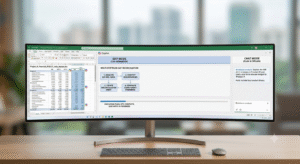
Chat Mode vs Edit Mode Excel: Key Differences
Aspirants often ask us to simplify this distinction. Here’s a quick comparison.
| Feature | Chat Mode Excel | Edit Mode Excel |
| Makes changes to workbook | No | Yes, directly |
| Best for | Excel formulas with AI, understanding formulas, quick insights | Reshaping data, building reports, multi-step tasks |
| Control level | You do the editing yourself | Copilot edits, you review afterward |
| Speed for repetitive tasks | Slower, manual application needed | Much faster, automated |
| Risk level | Very low, nothing changes automatically | Requires review, since Copilot edits live |
| Ideal for beginners? | Yes, safer starting point | Better once you’re confident reading Copilot’s changes |
A good rule of thumb: start in chat, understand what’s happening, then move to editing once you trust the outputs. This is the exact progression we walk aspirants through in our Excel training India sessions.
What’s New: Plan Mode, Change Tracking & Python in Excel Copilot
The Chat/Edit switcher is not the only change worth knowing about. A few other additions round out this year’s Excel AI features.
- i) Plan mode: gives you a middle ground. Rather than Copilot jumping straight into editing, it first explains its approach in plain language, and you approve, tweak, or reject it before a single cell changes.
- ii) Change tracking and reasoning visibility: mean you can watch Copilot’s thinking as it works, every step is visible in the side pane, so you’re never left wondering what happened to your data.
iii) Python inside Edit mode: is the biggest leap for anyone exploring Advanced Excel AI use cases. You no longer need to leave your workbook to run Python-powered analysis, Copilot applies it directly while editing, transforming data and generating visualizations in place.
Together, these updates mean Microsoft Copilot Excel has moved from a helpful assistant to something closer to a working partner inside the spreadsheet, echoing how Microsoft 365 Copilot is evolving across the rest of Office.
What Changes for the Indian Workplace
India’s finance, IT, and analytics sectors run heavily on Excel. From Chennai’s IT firms to Mumbai’s finance teams, spreadsheets remain the backbone of daily reporting.
When Microsoft 365 Copilot changes how Excel works, it ripples through job descriptions, training expectations, and hiring conversations nationwide, and these Excel AI features are no exception.
Here’s what shifts for professionals here:
- Faster turnaround expectations. If Excel automation can build a variance report in minutes, managers will expect it in minutes, not hours.
- New interview questions. Recruiters now ask candidates whether they’ve used Copilot for Excel 2026, not just whether they know VLOOKUP or pivot tables.
- A shift in required skills. Knowing how to write good Excel prompts, review AI in Excel output, and catch errors is becoming its own skill.
- Wider access to Advanced Excel AI analysis. Professionals without a data science background can now run Python-backed analysis through Excel AI, narrowing the gap between Excel users and data analysts.
For India’s large pool of commerce graduates and finance executives, this is less a threat and more an opportunity, provided Excel fundamentals are strong enough to work with AI, not just alongside it. This is the gap structured Excel training India programs need to close.
Real-World Use Cases
Here’s what this looks like in practice, across teams already using Microsoft Copilot Excel.
Finance teams use editing mode to close books faster, reconciling ledgers, flagging variances against budget, and formatting a management report in one session. It is one of the clearest Excel automation wins from Copilot for Excel 2026 reported by finance teams this year.
- i) Reporting and MIS teams rely on Chat Mode Excel first, asking questions like “which region underperformed this quarter,” before switching to Edit mode to rebuild the dashboard.
- ii) Analysts and consultants combine Excel formulas with AI and Python for tasks that once needed a separate BI tool:
- cohort analysis
- forecasting
- cleaning messy CRM exports.
Working confidently with Excel formulas with AI is quickly becoming a baseline expectation.
iii) HR and operations teams write simple Excel prompts to auto-generate attendance summaries and compliance reports without touching a formula manually.
The common thread: Excel productivity gains come from removing repetitive, low-judgment work, not from replacing the professional.
How to Access Copilot Chat/Edit Mode in Excel
If you have not tried it yet, here’s how to get started, and how to write good Excel prompts along the way.
- Check your license. Editing with Copilot needs a Microsoft 365 Personal, Family, or Premium subscription, or a Copilot-eligible business/enterprise plan.
- Open the Copilot pane. In Excel for Windows, Mac, or web, click the Copilot icon to open the pane on the right.
- Find the switcher. Above the prompt box, toggle between Chat only, Edit, and Plan modes, the core Excel AI features in this guide.
- Start in Chat mode if new. Ask a question first and get comfortable with responses before letting Copilot edit anything.
- Move to Edit or Plan mode for real tasks. Try a prompt like “reshape this sales data into a pivot summary by region” and watch Copilot execute it, with changes visible in the pane, which is a good first taste of Advanced Excel AI in action.
- Review before you save. Always check Copilot’s edits against your original data before finalizing the workbook.
That’s genuinely all it takes to start using Microsoft Copilot Excel the way it’s designed to be used.
Skills Indian Excel Aspirants Need to Stay Relevant in 2026
If you’re preparing for a career built around spreadsheets, this update changes what “being good at Excel” means. Formula memorization alone won’t carry you as far as before. Here’s what matters now, as Microsoft 365 Copilot becomes standard in Indian workplaces:
- Prompt writing for Excel. Learning to phrase Excel prompts clearly, vague prompts produce vague results, no matter how advanced the AI in Excel gets.
- Reviewing AI-generated formulas. Read and verify Excel formulas with AI rather than blindly trusting them.
- Understanding when NOT to automate. Know which Excel automation tasks benefit from AI in Excel and which still need human judgment.
- Basic Python literacy. A working familiarity helps you get more out of Python-enabled Advanced Excel AI capabilities.
- Data hygiene fundamentals. AI edits messy data faster, but it can’t fix a fundamentally broken structure, that’s still on you.
These are the practical, job-ready skills that separate someone who “knows Excel” from someone who delivers results.
Excel Prodigy’s Take, Why Structured Training Matters Now
At Excel Prodigy, we’ve spent years watching Excel evolve: from a formula-heavy tool into an AI-assisted workspace, and this update confirms exactly where things are headed.
The real-world observation shapes how we teach. Our Excel training India programs are not built around AI shortcuts, but built around two things working together:
- Solid formula and data fundamentals, and
- Hands-on practice using Excel AI features like Copilot Chat Edit Mode in Excel 2026.
Here’s what that actually looks like in a session:
- Formula-first foundations — so you understand what Copilot is doing, not just what button to click
- Guided prompt-writing practice — learning to phrase requests that get accurate, usable results
- Output verification drills — catching AI errors before they end up in a client report
- Real workbook simulations — practicing on messy, realistic data, not clean textbook examples
We do not just show you which button to click; we teach you how to prompt Copilot correctly and verify what it gives you back, because trusting an AI output blindly is how small errors turn into costly ones.
If you are serious about staying ahead in 2026, learning to work with Copilot for Excel 2026, not around it, is the real differentiator. That’s the philosophy behind every Excel training India batch we run: build genuine Excel productivity, not dependency.
Conclusion
The Copilot Chat Edit Mode in Excel 2026 update marks a genuine shift in how spreadsheets get built, not just another feature to skim past. For Indian professionals, it means faster Excel automation workflows, real Excel productivity gains, and a fresh set of skills worth learning early with Copilot for Excel 2026.
If you’d like structured, hands-on training on Copilot for Excel 2026 and the Excel AI features shaping workplaces across India, Excel Prodigy’s programs are built exactly for that — ready when you are.
AI is changing what ‘Excel skills’ mean, make sure you’re on the right side of that change. Book your seat at Excel Prodigy today.
FAQs
1) What is Copilot Chat Edit Mode in Excel 2026?
It’s a switcher in Excel that lets users choose between Chat mode (Copilot only answers questions), Edit mode (Copilot directly edits the workbook), and Plan mode (Copilot proposes a plan before editing).
2) Is Copilot Chat Edit Mode in Excel 2026 available in India?
Yes. Microsoft 365 Copilot features, including the Chat/Edit switcher, are rolling out to eligible subscribers in India as part of global and regional release waves through 2026.
3) Do I need a paid subscription to use Edit Mode Excel?
Yes, editing with Copilot requires a Microsoft 365 Personal, Family, or Premium subscription, or a Copilot-eligible business or enterprise plan.
4) Can a Copilot in Excel run Python now?
Yes, Python is now available directly inside Edit mode, letting Copilot apply Python-based techniques for data transformation and visualization without leaving the workbook — part of the broader shift toward Advanced Excel AI capabilities.
5) Will AI in Excel replace the need to learn Excel formulas?
No. AI in Excel speeds up execution, but reviewing Excel formulas with AI before finalizing a report still matters, exactly why Excel training India programs prioritize fundamentals.
6) Is Chat Mode Excel safer than Edit Mode Excel for beginners?
Yes, Chat Mode Excel is a good starting point since it never changes your workbook automatically, making it lower-risk while you learn how Copilot responds.
7) Does this update improve Excel productivity for Indian teams?
Yes. By automating repetitive reporting and data-cleaning tasks, it frees up time for higher-value analysis, one of the clearest Excel productivity gains cited by early adopters in India.