
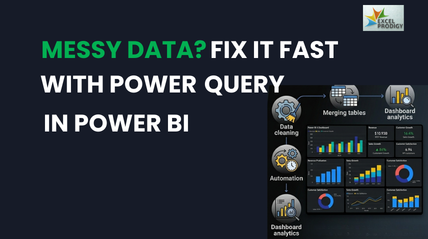
How to Use Power Query in Power BI for Data Transformation
In today’s data-driven environment, organizations generate vast volumes of structured and unstructured data every day. However, raw data rarely arrives in a clean, analysis-ready format. This is where Power Query in Power BI plays a crucial role. It enables efficient data transformation in Power BI, helping professionals clean, structure, and automate datasets before building insightful reports.
Whether you are a business analyst, corporate reporting professional, student, or data enthusiast, mastering Power Query in Power BI simplifies complex workflows and reduces manual effort. This guide explains how it works, practical implementation steps, real-world use cases, and how it strengthens analytics capabilities.
What Is Power Query and Why It Matters in Power BI
Power Query in Power BI is a data preparation and transformation engine embedded within Power BI Desktop. It allows users to connect to multiple data sources, clean messy datasets, and apply transformation logic before loading data into the model.
Think of it as the ETL layer within Power BI.
- Extract data from multiple sources
- Transform data into structured formats
- Load it into Power BI for visualization
This internal ETL process is commonly referred to as Power BI ETL, and it ensures accurate modeling and reporting.
Why It Matters
Without structured data:
- Reports become inconsistent
- Dashboards show inaccurate metrics
- Manual data cleaning wastes time
- Teams struggle with large datasets
Effective data transformation in Power BI ensures data consistency, automation, and reporting accuracy.
Key Features of Power Query for Data Transformation
Gaining a clear understanding of its fundamental features and functions enables users to fully leverage its capabilities and maximize its overall performance and efficiency.
1. Multi-Source Connectivity
You can import data from:
- Excel files
- SQL databases
- CSV files
- Web APIs
- Cloud platforms
This forms the foundation of Power BI ETL, enabling seamless data integration.
2. Data Profiling Tools
Power Query provides:
- Column distribution insights
- Null value detection
- Error identification
These features improve Power BI data cleaning efficiency.
3. Transformation Interface
Through an intuitive interface, users can:
- Rename columns
- Change data types
- Split or merge columns
- Remove duplicates
These structured Power Query steps make transformation transparent and repeatable.
4. Query Automation
Every transformation is recorded as a step in the Applied Steps pane. This enables automation and refresh capabilities, essential for scalable Power BI dashboards.
Step-by-Step Guide to Using Power Query in Power BI
Let us now explore how these concepts translate into real-world application by examining the practical implementation process step by step, ensuring clarity, usability, and effective understanding of each stage involved.
Step 1: Import Data
- Open Power BI Desktop
- Click Get Data
- Select the data source
- Choose Transform Data
This opens the Query Editor, where all Power Query steps are performed.
Step 2: Understand the Query Editor
The Query Editor includes:
- Ribbon menu for transformations
- Data preview grid
- Applied Steps pane
- Query settings
Each action you take is automatically stored as a step, making data transformation in Power BI reproducible.
Step 3: Perform Basic Transformations
Common transformations include:
- Removing blank rows
- Filtering unnecessary records
- Changing column formats (Text to Date, Number to Currency)
- Removing duplicates
These are essential for accurate Power BI data cleaning.
Step 4: Rename and Reorder Columns
Clean column naming ensures clarity in modeling.
Example:
- “Cust_ID_001” → “Customer ID”
- “Amt$” → “Sales Amount”
Clear naming supports better report building and efficient shaping data in Power BI.
Step 5: Load the Transformed Data
Once transformations are complete:
- Click Close & Apply
- Data loads into the model
You can now build professional Power BI dashboards using clean datasets.
Cleaning and Shaping Data with Power Query
Disorganized and inconsistent datasets frequently create significant challenges for organizations, leading to reporting errors, delayed decision-making, inefficient workflows, and increased time spent on manual data correction and validation processes.
Common Data Issues
- Duplicate entries
- Inconsistent date formats
- Blank values
- Mixed data types
- Extra spaces
Tackling these issues systematically is essential to ensuring accurate, consistent, and reliable datasets, forming a critical component of a strong and efficient Power BI data cleaning process within any organization.
Practical Example: Cleaning Sales Data
A retail dataset containing Issues:
- Duplicate records
- Inconsistent date formats
Using structured Power Query steps, you can:
- Remove duplicates
- Standardize date formats
- Change data types
This ensures accurate data transformation in Power BI before visualization.
Techniques for Shaping Data
Tackling these issues systematically is essential to ensuring accurate, consistent, and reliable datasets, forming a critical component of a strong and efficient Power BI data cleaning process within any organization.
- Splitting columns (Full Name → First & Last Name)
- Pivoting and unpivoting data
- Grouping and aggregating records
- Creating calculated columns
Applying structured data shaping techniques in Power BI cleaning helps organize, refine, and format your dataset effectively, ensuring it supports accurate analysis, meaningful insights, and alignment with specific reporting objectives.
Merging and Appending Data from Multiple Sources
Organizations often store data in separate systems. Consolidation becomes necessary.
Merge Queries
Used when combining tables based on common keys.
Example:
- Sales Table
- Customer Table
Merging creates a unified dataset, enhancing modeling accuracy and improving Power BI dashboards.
Append Queries
Used when stacking similar datasets.
Example:
- January Sales
- February Sales
Appending simplifies monthly consolidation and supports scalable Power BI ETL workflows.
Why This Matters
Without merging and appending:
- Reports remain fragmented
- Manual Excel work increases
- Data errors multiply
Proper integration strengthens data transformation in Power BI and supports enterprise analytics.
Automating Data Transformation for Dashboards and Reports
One of the most powerful benefits of Power Query in Power BI is automation.
How Automation Works
Every transformation step is stored in sequence:
- Remove rows
- Change data type
- Merge queries
- Rename columns
When new data arrives:
- Click Refresh
- All Power Query steps reapply automatically
This reduces manual processing and strengthens reporting accuracy.
Benefits for Corporate Teams
Automation:
- Saves time
- Reduces human error
- Standardizes reports
- Improves governance
This makes Power BI ETL scalable for large organizations.
Real-World Applications of Power Query in Business Analytics
1. Finance Sector
- Consolidating financial statements
- Cleaning ledger data
- Automating monthly reporting
2. Retail & E-Commerce
- Cleaning sales transaction data
- Merging customer behavior datasets
- Preparing data for trend-based Power BI dashboards
3. Healthcare
- Structuring patient records
- Removing duplicate entries
- Ensuring compliance-based reporting
4. Manufacturing
- Integrating production records
- Monitoring supply chain metrics
- Improving operational analytics
5. HR & Talent Analytics
- Standardizing employee records
- Tracking attrition rates
- Automating workforce dashboards
Across industries, efficient data transformation in Power BI ensures consistency and strategic decision-making.
Common Issues and How Power Query Fixes Them
Many organizations face recurring data problems that impact reporting accuracy, efficiency, and decision-making across departments and analytics workflows.
| Challenge | Solution |
| Large messy datasets | Structured Power Query steps |
| Manual data processing | Automated refresh |
| Inconsistent models | Standardized transformations |
| Data duplication | Built-in removal tools |
| Multi-source reporting | Integrated Power BI ETL |
By applying structured transformations and automation, Power Query BI resolves these issues, ensuring reliable, consistent, and analysis-ready datasets for reporting.
Why Learn Power Query at Excel Prodigy
Learning Power Query at Excel Prodigy equips students and professionals with practical data transformation skills essential for building accurate, efficient, and industry-ready analytics solutions.
For students and analytics learners:
- Builds strong ETL fundamentals
- Enhances BI career opportunities
- Improves dashboard-building skills
For corporate professionals:
- Reduces reporting turnaround time
- Enhances data governance
- Supports advanced analytics initiatives
Structured training from Excel Prodigy, known for analytics education in Chennai, can help bridge the knowledge gap and strengthen practical understanding.
Conclusion
Accurate reporting starts with well-structured data, and without proper preparation, even advanced visuals can misguide decisions. At Excel Prodigy, learners gain hands-on expertise in cleaning, integrating, and automating datasets using Power Query in Power BI. From data cleaning to ETL workflows and dashboard readiness, structured training ensures scalable BI solutions.
Ready to master data with confidence? Enroll at Excel Prodigy and turn raw information into powerful business insights.
Frequently Asked Questions (FAQs)
1) What is Power Query in Power BI used for?
Power Query in Power BI is used to connect, clean, transform, and automate data before loading it into reports and dashboards.
2) How do I clean and transform data using Power Query?
You can clean and transform data by:
- Removing duplicates
- Changing data types
- Filtering records
- Merging tables
- Applying structured Power Query steps
These actions improve overall data transformation in Power BI.
3) Can Power Query automate repetitive tasks in Power BI?
Yes. Every transformation is saved as a step. When data refreshes, all transformations automatically reapply, making Power BI ETL efficient and scalable.
4) How do I merge multiple data sources using Power Query in Power BI?
You can merge multiple data sources by using the Merge Queries or Append Queries options in the Query Editor. These features allow you to combine tables based on common columns or stack similar datasets, ensuring structured and consistent reporting.
5) Is Power Query suitable for handling large datasets in Power BI?
Yes. Power Query is designed to efficiently process and transform large datasets through step-based transformations, query optimization, and automated refresh, making it ideal for enterprise-level reporting and analytics.


